Use a supported Blender 5.x release.
From installation
to a production-ready Bake.
Cloth NeXt keeps setup, materials, validation, simulation, recovery and playback inside Blender while the external solver performs the actual solve. This guide follows the current 2.7 workflow.
Requirements
The current production workflow targets Windows.
A compatible NVIDIA GPU is required by the supported solver workflow.
Scene capacity
Practical scene size depends on VRAM, system RAM, topology, contact count, animated samples, quality, frame count and the roles participating in the solve.
Install Cloth NeXt
- 1Download the product ZIP
Keep the extension archive intact. Do not extract it.
- 2Open Blender Extensions
Go to
Edit → Preferences → Extensions. - 3Install from Disk
Open the repository menu, choose
Install from Disk, and select the ZIP. - 4Enable Cloth NeXt
Enable the extension and restart Blender whenever Blender requests it.
Customer updates now come through Superhive
From Cloth NeXt 2.7 onward, normal customer updates use Superhive's native Blender Extension Repository. The old Stable, Beta and Dev selector is no longer part of the current customer workflow.
Superhive connected
Means an enabled official Superhive repository is configured in Blender.
Purchase validated
Means Blender's locally cached Superhive repository index contains Cloth NeXt.
No custom account system
These status indicators use Blender repository data. Drawing the Preferences panel does not read access tokens or make a network request, and the status does not enable or disable product features.
Install or select the solver
The solver is separate third-party software and is never bundled inside the Cloth NeXt extension.
- 1Open Cloth NeXt Preferences
Find Cloth NeXt in Blender's installed Extensions.
- 2Choose a solver installation
Use a managed installation downloaded from the official source, or register an existing external installation.
- 3Review and confirm
Managed downloads require explicit confirmation and are installed outside the extension directory.
- 4Run the health check
Cloth NeXt verifies the selected installation before it is used for production Bakes.
Side-by-side solver installs
Managed solver releases can coexist. Switching or repairing a managed installation does not modify the Cloth NeXt extension itself.
Your first Cloth Bake
- 1Prepare the mesh
Use intentional scale and topology that remains compatible throughout the Bake.
- 2Assign roles
Use Physics Properties or ARC neXt to choose Cloth, Collider, Cable / Rope, Soft Body or Rigid Body.
- 3Choose material and contact settings
Start from a material preset, then adjust only what the shot needs.
- 4Set the Bake range and cache directory
All participating objects must be compatible with the shared simulation range.
- 5Validate and Bake
Resolve Scene Health issues, then start the Bake from the Simulation panel or floating toolbar.
New Look and ARC neXt
Enable New Look in Cloth NeXt Preferences to use the compact floating simulation toolbar in the 3D Viewport. ARC neXt sits directly above that toolbar and gives you fast role assignment without leaving the viewport.
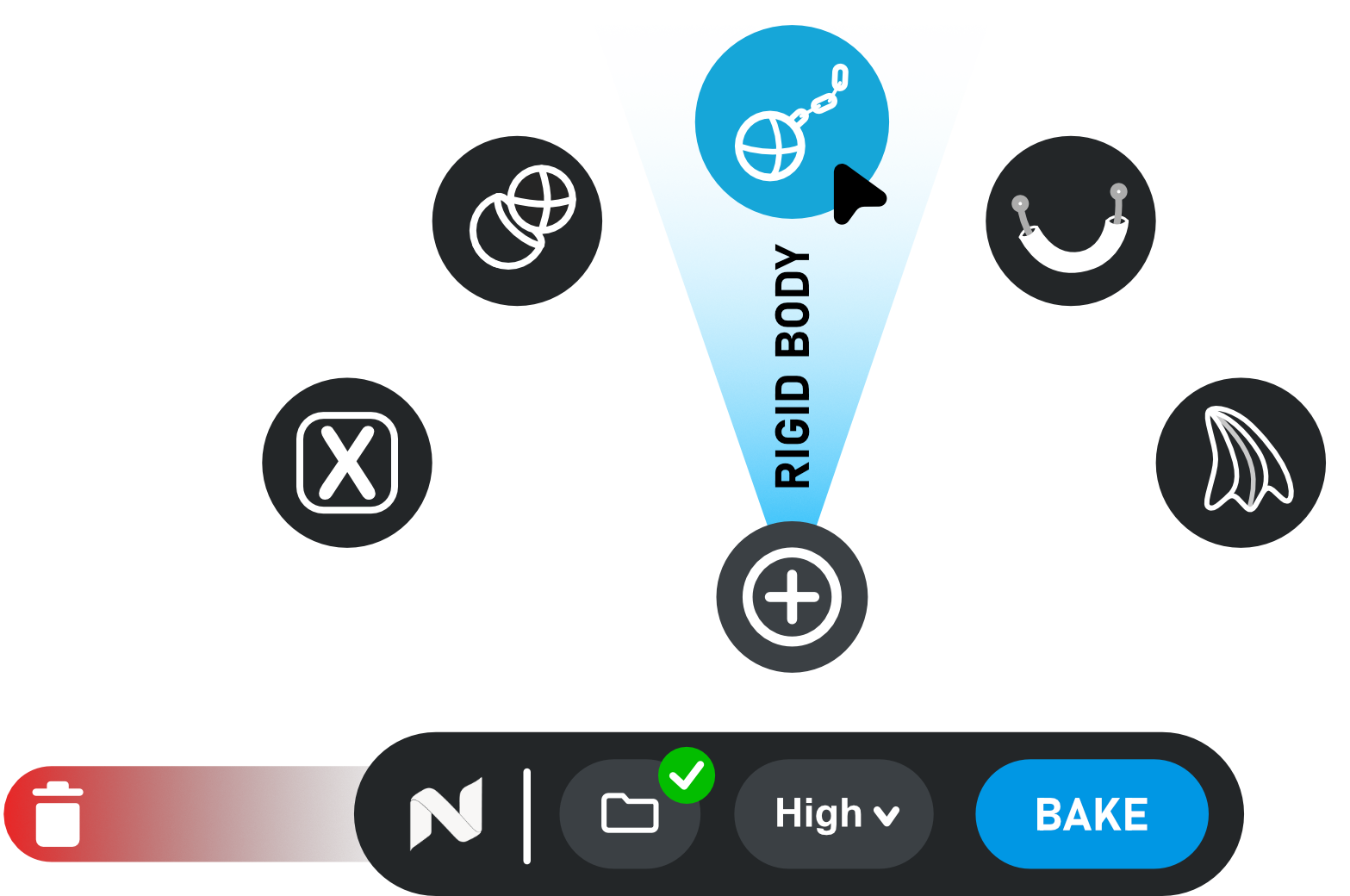
Build one interacting simulation scene
Cloth
A surface mesh simulated as fabric, with material, rest-shape, pressure, sewing, pinning and contact controls.
Cable / Rope
A Bezier or Poly Curve simulated as a one-dimensional deformable centerline.
Soft Body
A closed volumetric deformable using automatic internal tetrahedralization.
Rigid Body
A closed solid moving object using the rigid PDRD workflow while participating in shared contact.
Collider
A static or animated contact surface, optionally replaced by a generated simulation proxy.
Force
A keyframeable Empty for gravity, wind and supported air behavior.
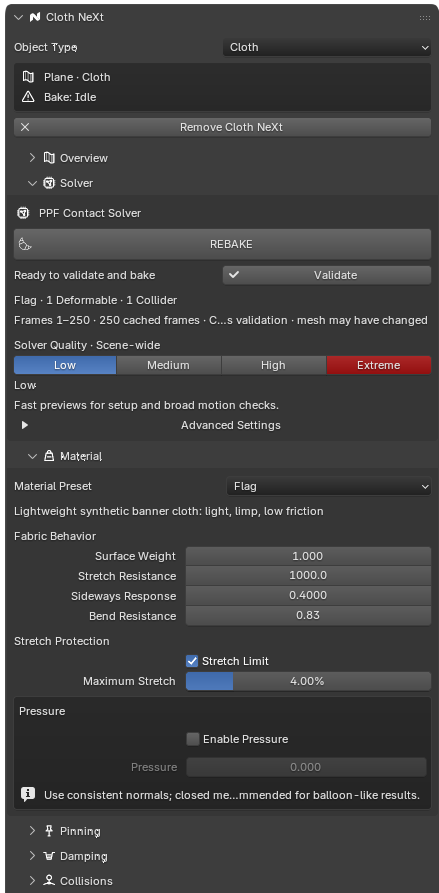
Start with one of 75 material presets
Presets provide artist-facing starting points for fabric response. Editing a preset-controlled value switches the selection to Custom without resetting the current material.
Surface response
Surface Weight controls area mass. Stretch Resistance, Sideways Response and Bend Resistance control the main fabric deformation behavior.
Stretch protection
Stretch Limit and Maximum Stretch can cap extension when the material needs stricter dimensional control.
Damping
Shape Damping reduces in-plane oscillation; Fold Damping calms bending flutter and unstable folds.
Permanent deformation
Permanent Stretch and Permanent Bends expose creep rate and threshold controls for rest-shape changes under sustained deformation.
Stretch Resistance is a solver-native value
The solver's young-mod is density-normalized. Cloth NeXt does not label it as an ordinary textbook Young's modulus in pascals.
Change what the material wants to return to
Shrink
Positive Cloth Shrink contracts the rest shape. Negative values expand or pre-stretch it.
Pressure
Uniform pressure acts along Cloth surface normals. Consistent normals and closed geometry are recommended for balloon-like results.
Sewing
Edges not used by any face can become sewing springs that pull their endpoints together.
Initial Bend Shape
Cloth and Cable controls can preserve the starting bends as the bend rest shape instead of treating the object as initially flat.
Attach cloth without freezing the whole performance
Standard Pinning uses a Blender vertex group and supports Static or Follow Animation behavior. Follow Animation captures evaluated Blender positions throughout the Bake range.
Advanced Pin Motion
Add multiple independent Pin Groups with their own animated Target Objects and per-group Strength. Groups preserve their own Bake Start offsets and remain subject to collider contact.
Soft Constraints
Add Target Object rows for Location, Rotation or Scale with independent Strength values. Removing all rows disables the soft-constraint setup.
Pin topology must remain stable
Pin indices and captured animation depend on topology-preserving evaluated geometry. Overlapping Advanced Pin groups are not supported.
Control contact without confusing gap and thickness
Friction controls surface sliding. Collision Gap is the contact barrier distance. Surface Offset represents simulated thickness or collision radius and is particularly important for Cable / Rope centerlines.
Friction Regions
Vertex-group friction overrides can assign different grip values to selected areas while unassigned vertices keep the object's general Friction.
Collision Timing
Advanced controls expose audited contact completion, motion safety, collision-search and moving-constraint precision settings for difficult scenes.
Use the full character or a lighter collision target
Animated Colliders capture evaluated Blender transforms and topology-preserving deformation. Parenting, constraints, drivers, Armatures, Shape Keys and compatible deforming modifiers can contribute to the evaluated motion.
Motion Samples
Sub-frame sampling improves fast or curved animated motion without becoming extra logical output frames.
Character Collision Cage
Generate an animation-aware per-bone proxy when the full character is unnecessarily expensive for collision preparation.
Reduced Mesh Proxy
A target vertex count can create a simpler collision surface for scenes that do not need full source detail.
Proxy replacement
When enabled, the logical Collider is replaced by its generated simulation proxy during the Bake while the source remains your Blender object.
Beyond surface Cloth
Cable / Rope
Uses Bezier or Poly Curve control points as a one-dimensional centerline. Linear Density, stretch, bend, length scale, stretch limit and permanent bends control the response.
Soft Body
Uses a closed manifold mesh, volumetric density and stiffness controls, volume scale, tetrahedralizer choice, damping and permanent stretch.
Rigid Body
Uses a closed solid mesh with Weight Density and the shared collision controls. It participates in the same contact scene as other supported roles.
Shared contact
Different supported deformable and rigid roles can interact within the same Cloth NeXt Bake instead of being solved as isolated effects.
Animate the environment and explicit motion
Force objects expose Gravity, Wind, Wind Variation, Wind Noise Scale, Air Density, Air Friction and Vertex Air Damping. Supported values can be animated through normal Blender keyframes.
Force direction
Gravity and Wind use the configured Empty orientation / axis behavior and are converted into solver space during the Bake.
Motion Overrides
Frame-specific Move or Spin entries can replace velocity for supported dynamic vertices when the solver crosses the configured frame.
Use presets first, expert controls second
Quality presets provide the normal iteration path. Advanced settings expose real solver parameters such as Time Step, Newton passes, PCG limits and tolerance.
Fast setup and broad motion checks where available for the active role mix.
Balanced iteration for normal scene development.
Higher-cost settings for demanding contact and final-oriented runs.
An expensive last-mile option for particularly difficult scenes.
Advanced solver controls are diagnostic tools
Material, topology, collision setup and scene scale should be corrected before increasing low-level contact capacity or iteration limits.
Know what the Bake is doing
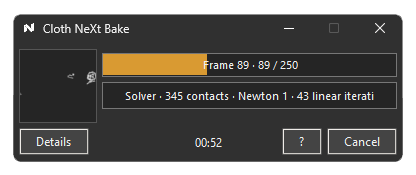
The Bake Companion reports current activity, frame progress and estimated timing while Cloth NeXt prepares and transfers the simulation result.
- Buffered Live View follows confirmed complete solver frames during a running Bake.
- Results use versioned, authenticated playback-cache metadata.
- A failed or cancelled Rebake preserves the previous valid result for rollback.
- Changing solver-visible settings or geometry can mark an existing result stale.
- Clear Result removes only authenticated Cloth NeXt-owned playback data.
Protect long Bakes
Recovery checkpoints are authenticated before Cloth NeXt offers them for resume. Invalid, incompatible or foreign checkpoints are not presented as safe recovery states.
Recovery policy
Checkpoint interval, retained states, automatic saving and save-on-cancel / save-on-finish behavior are configurable.
Memory Safety
Auto-Cancel on High RAM is enabled by default and can stop a Bake after total system RAM remains above the configured safety threshold.
Previous results stay protected
Recovery and Rebake use transactional cache handling so an incomplete new run does not silently replace a previously valid result.
When a Bake fails
- 1Read the CNX code
The Bake Companion and Blender show a stable code such as
CNX-E161. - 2Follow the displayed guidance
The error state identifies the likely stage and recommended first action.
- 3Run Scene Health
Check geometry, storage, compatibility, memory, solver readiness and recoverable cache state.
- 4Retry or resume
After correcting the reported issue, start a new Bake or resume only from a verified checkpoint.
Important limitations
- Windows x64 and a compatible NVIDIA GPU are currently required for the supported production workflow.
- The external solver is installed separately and is not included in the Cloth NeXt ZIP.
- Topology-changing deformation across a Bake is rejected where constant topology is required.
- Playback requires stable vertex count and vertex order; dynamic tearing / ripping is not supported.
- Cable / Rope currently supports Bezier and Poly Curves and uses one uniform simulated collision radius. Curve bevel, taper and per-point visual radius do not create variable physical thickness.
- Soft Body requires a suitable closed manifold surface for volumetric tetrahedralization.
- Timed pin release is not currently exposed. Advanced Pin groups must not overlap.
- Material and pressure behavior is evaluated as configured for the Bake; unsupported dynamic material controls remain hidden rather than being approximated.
- Capacity depends on topology, contacts, animated samples, quality, VRAM, RAM, disk space and frame count.
What to include in a support request
Run Scene Health and choose Export Privacy-Safe Report. Send the report with the visible CNX error code, Blender version, GPU model and short reproduction steps using the support contact on the Superhive product page.
Your scene stays private
The report excludes mesh geometry, object names, file contents and full filesystem paths.